How‑to
Use Lighthouse to analyze your website image performance
A practical, step‑by‑step guide to audit image performance with a free tool in Chrome called Lighthouse and fix important issues that impact users.

September 25, 2025
Problem
Image optimization remains one of the most overlooked performance bottlenecks in modern web development. Despite advances in Core Web Vitals, many sites still serve unoptimized images that severely impact Largest Contentful Paint and Cumulative Layout Shift scores. The disconnect between design intent and technical implementation often results in serving 4K assets scaled down via CSS, missing responsive image breakpoints, and defaulting to legacy formats instead of next-gen alternatives.
Lighthouse audits consistently reveal image-related opportunities as one of the most common performance issues. According to recent studies, images can constitute between 50% to 90% of a webpage's total weight, with unoptimized images being a primary cause of subpar Core Web Vitals scores ¹. Common issues include improper srcset implementations, missing loading="lazy" attributes, and format selection that doesn't leverage browser capabilities. These problems directly impact user experience, search rankings, and conversion rates. The challenge isn't understanding that images need optimization—it's systematically identifying and addressing the specific issues that matter most for your site's performance profile.
Solution
Several tools can analyze image performance—Cloudinary's Website Speed Test, ImageKit.io Website Analyzer, and WebPageTest—but many tools like these actually use Lighthouse under the hood. Today we'll focus on using Google Lighthouse directly because it's free, easy to use, and provides actionable recommendations for improving your Core Web Vitals scores. Once you understand how to use it, you can analyze all your websites and use tools like Derivv Pro to improve them.
Step 1: Run Lighthouse Performance Audit
1.1 Open Chrome DevTools
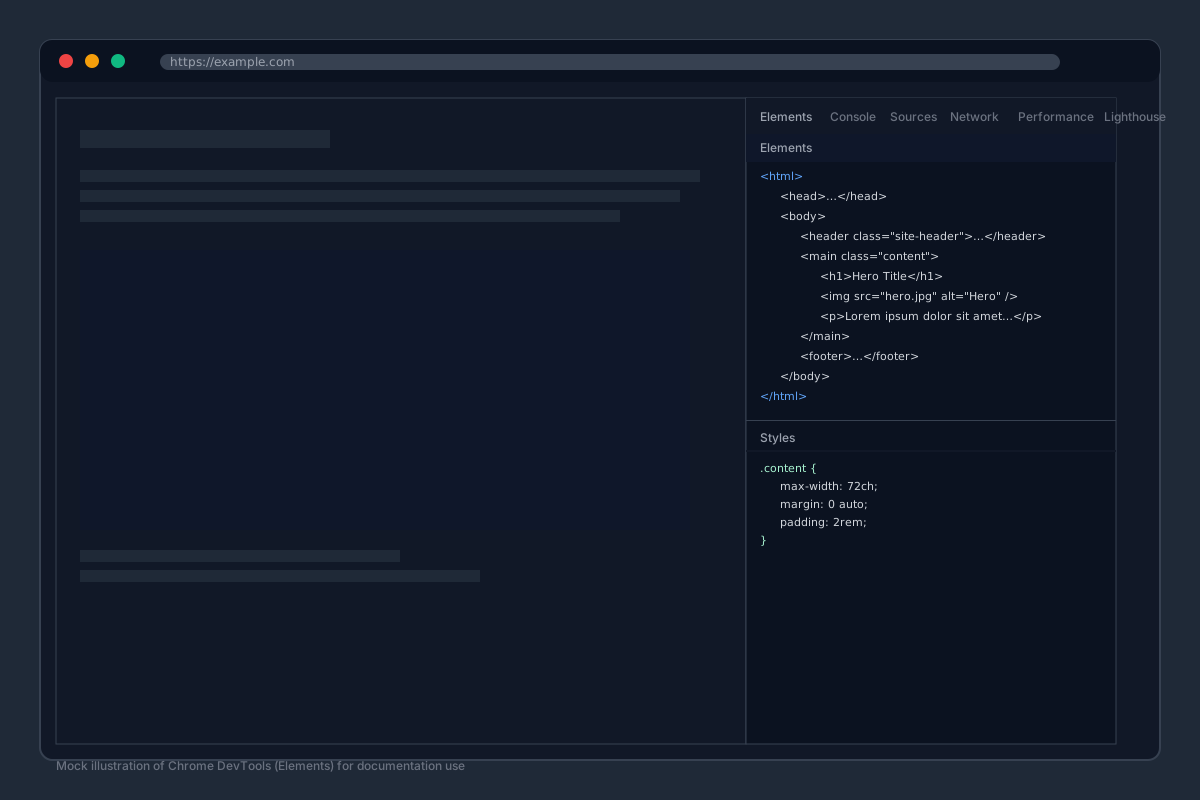
Quick tip: You can also use Cmd+Option+I (Mac) or Ctrl+Shift+I (Windows/Linux) as keyboard shortcuts.
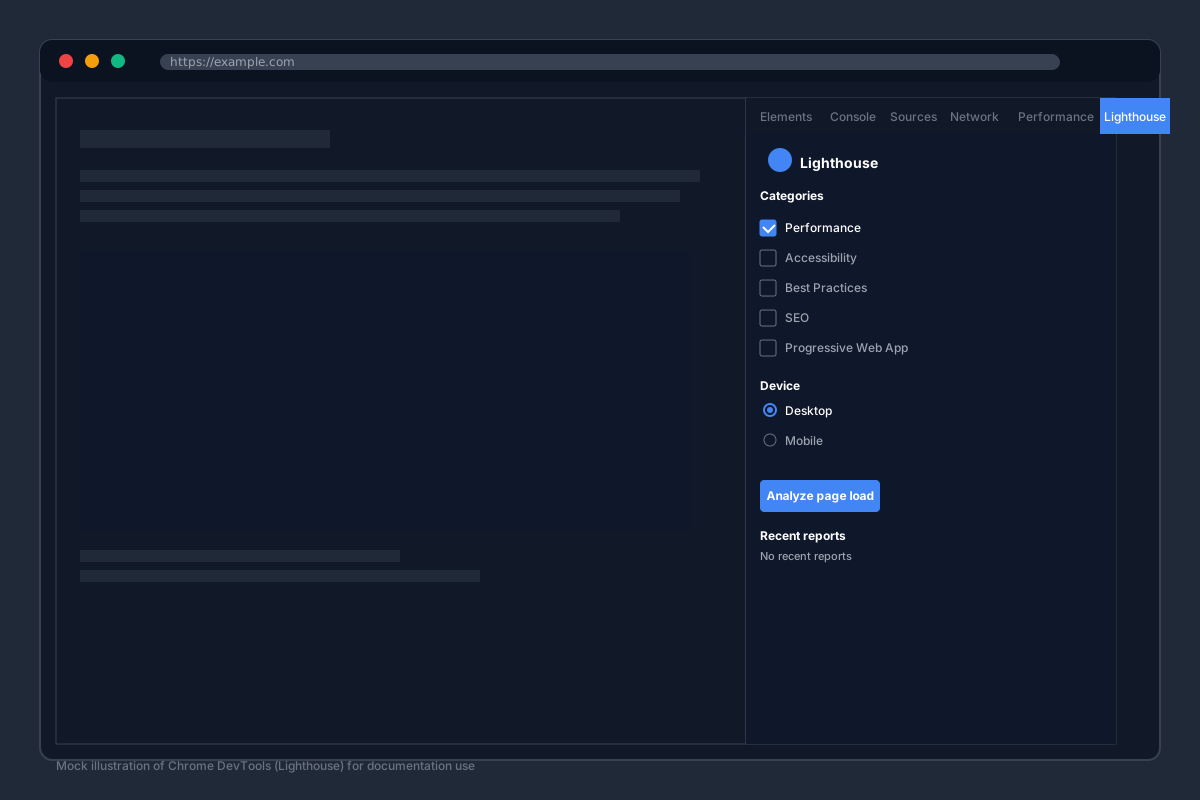
1.2 Navigate to Lighthouse
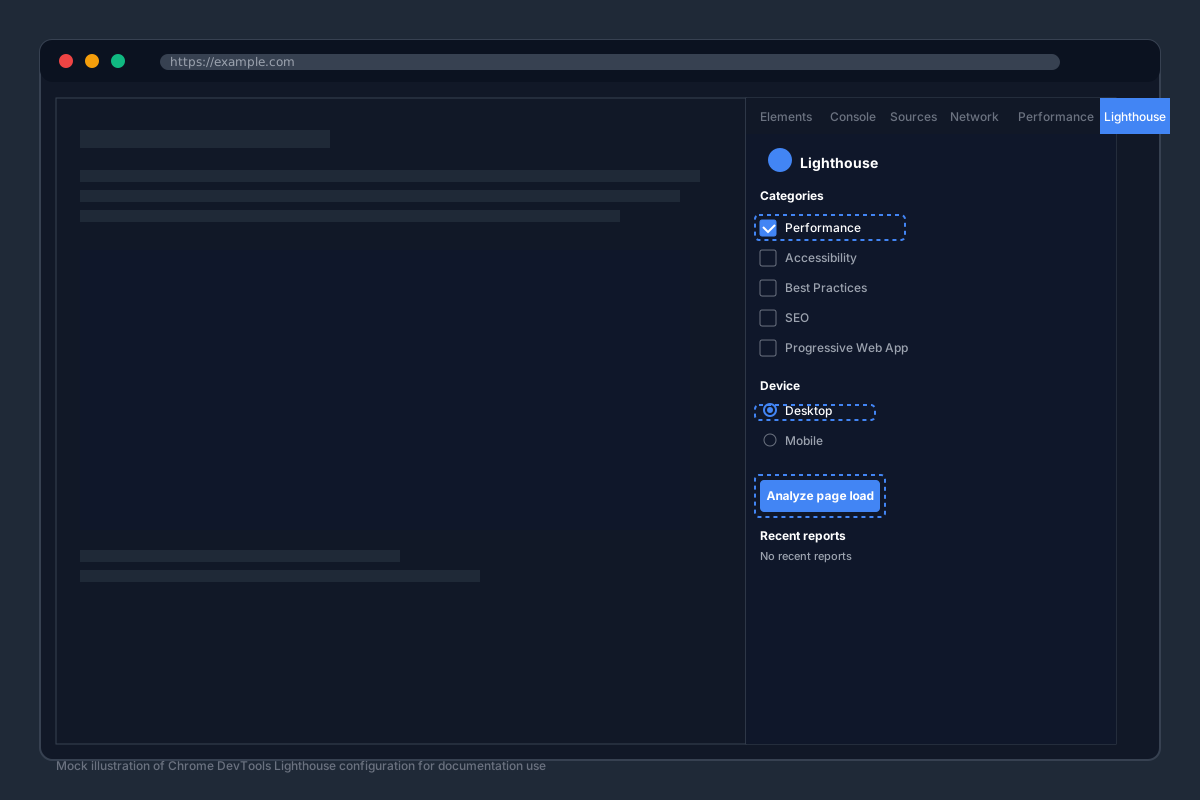
1.3 Configure the Audit
- Select "Performance" category
- Check "Desktop" device
- Click "Analyze page load"
Step 2: Analyze Image-Related Opportunities
2.1 Review the Performance Score
Lighthouse will generate a performance score and highlight key metrics.
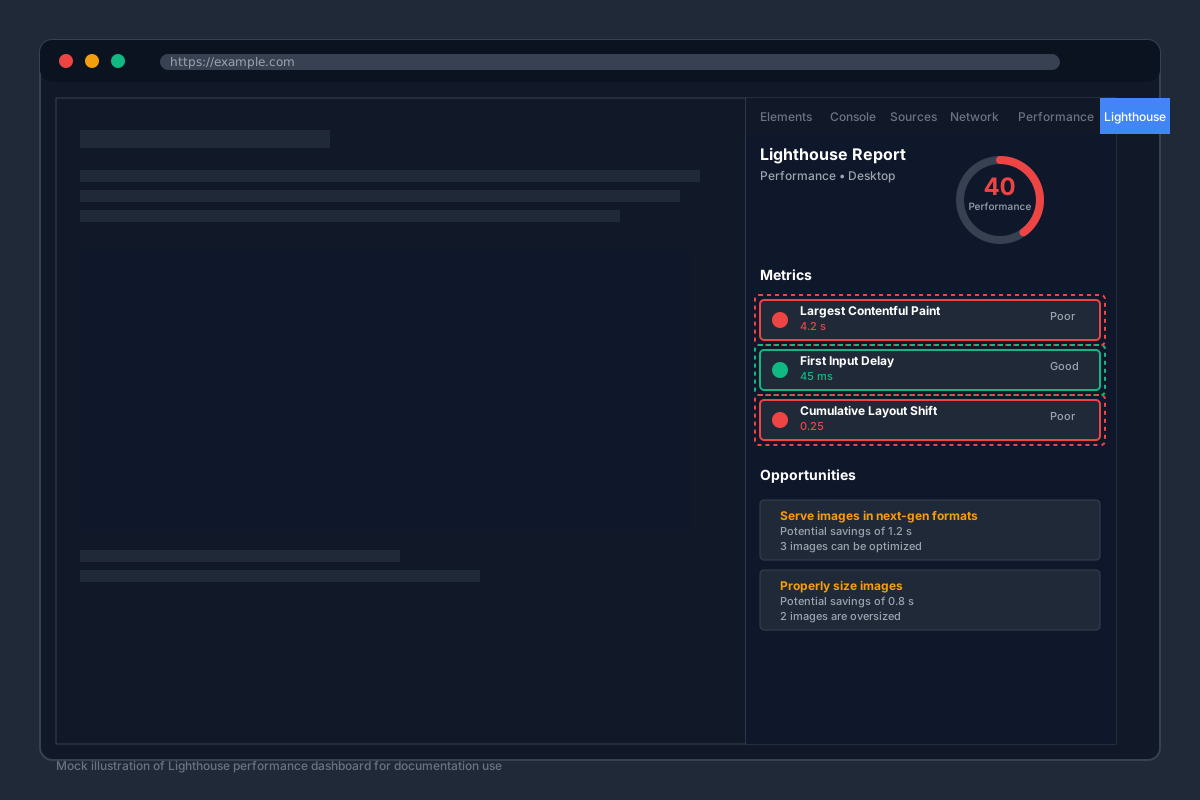
2.2 Focus on Image Opportunities
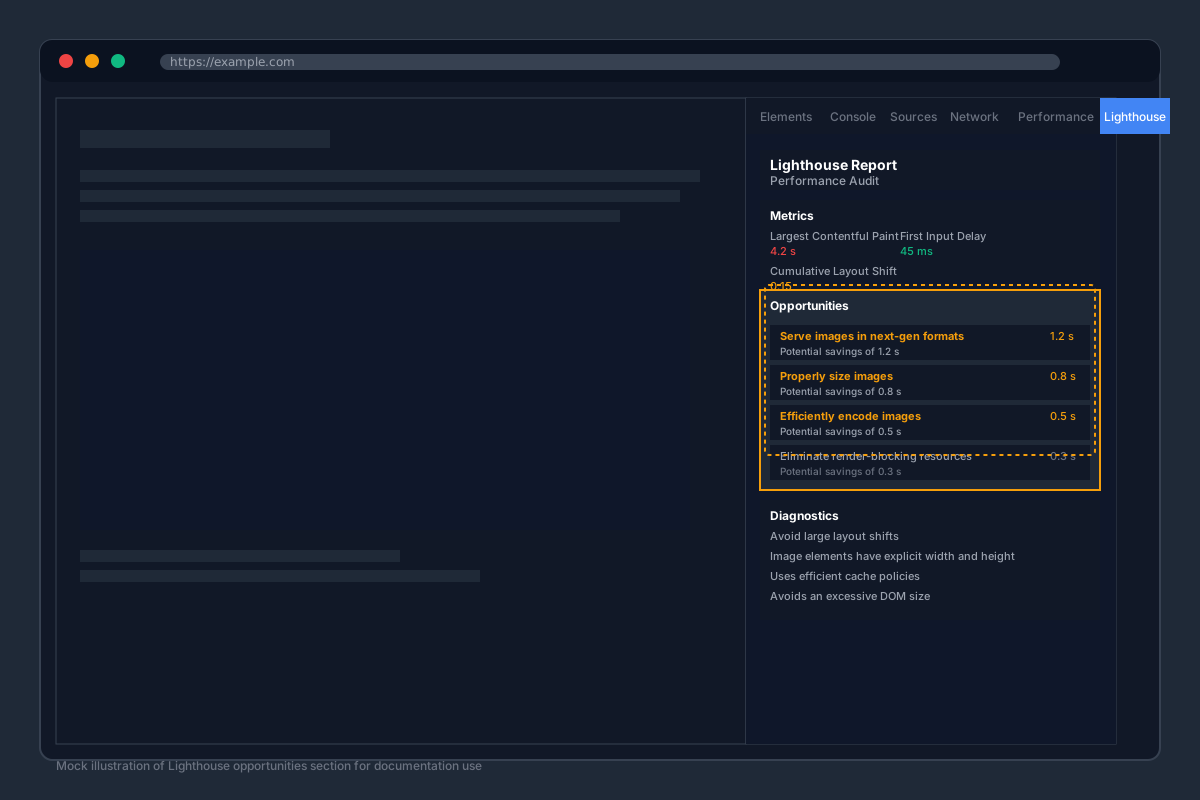
Scroll down to the "Opportunities" section and look for image-related issues:
2.3 Common Image Issues You'll See
"Serve images in next-gen formats"
- Shows potential savings by converting JPEG/PNG to WebP/AVIF
- Lists specific files and estimated savings
"Properly size images"
- Identifies oversized images being scaled down by CSS
- Shows actual vs displayed dimensions
"Defer offscreen images"
- Flags images below the fold that should be lazy loaded
- Shows potential bandwidth savings
"Efficiently encode images"
- Suggests compression improvements
- Shows file size reduction opportunities
Step 3: Detailed Image Analysis
3.1 Use the Network Tab for Image Analysis
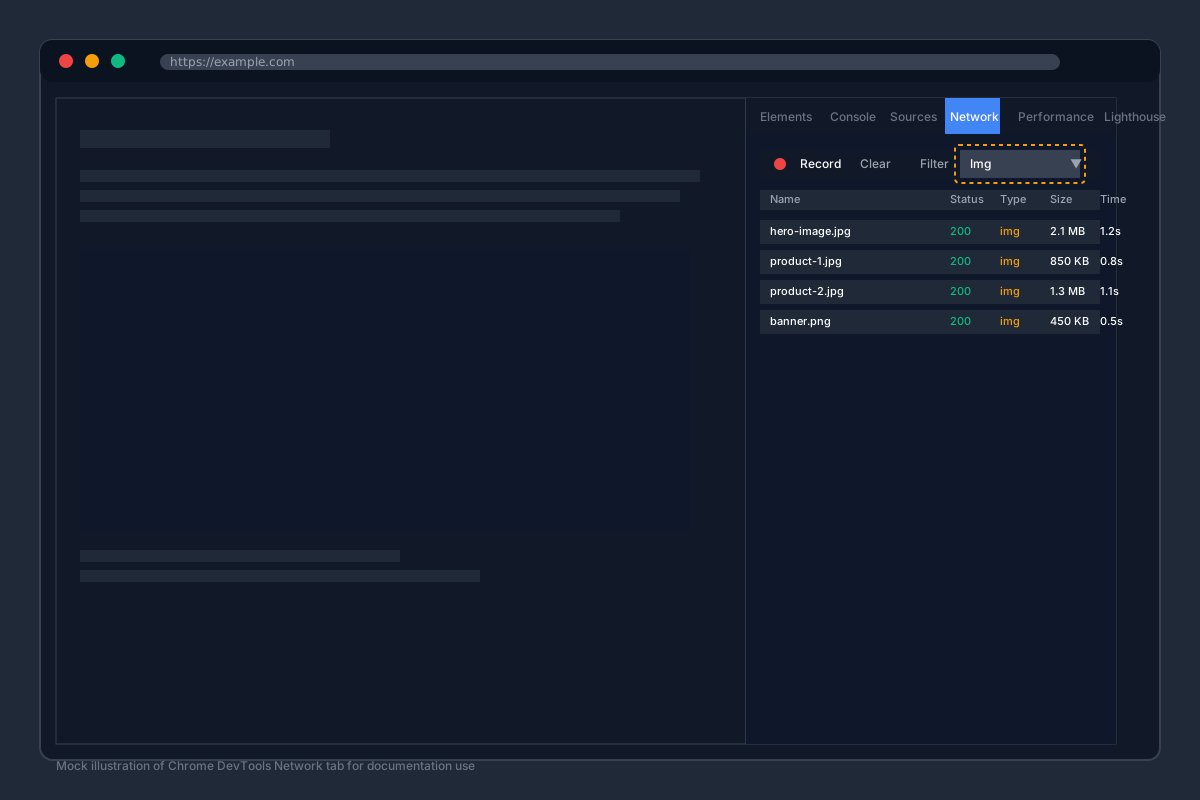
Switch to the Network tab and filter by "Img" to see all image requests.
3.2 Analyze Individual Images
Click on any image to see detailed information:
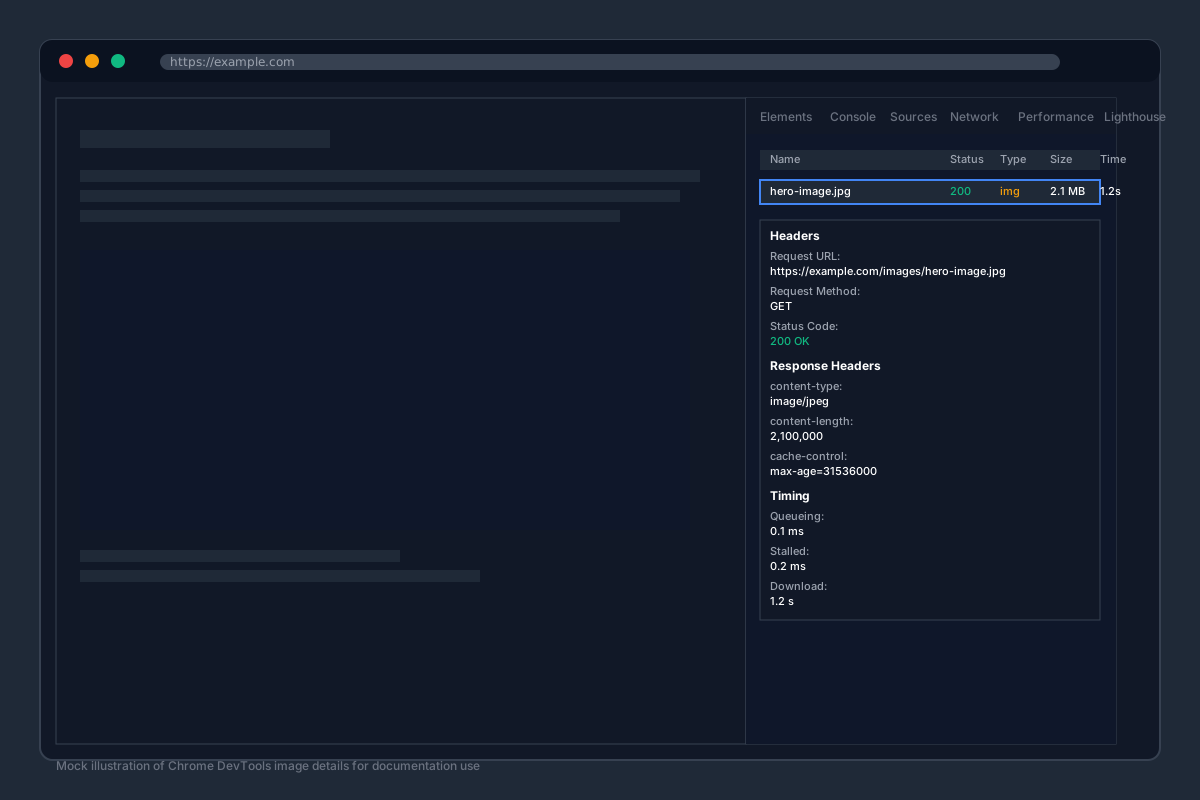
Look for:
- File size vs displayed size - Is the image much larger than needed?
- Format efficiency - Could JPEG be WebP? Could PNG be optimized?
- Load timing - Is it blocking critical content?
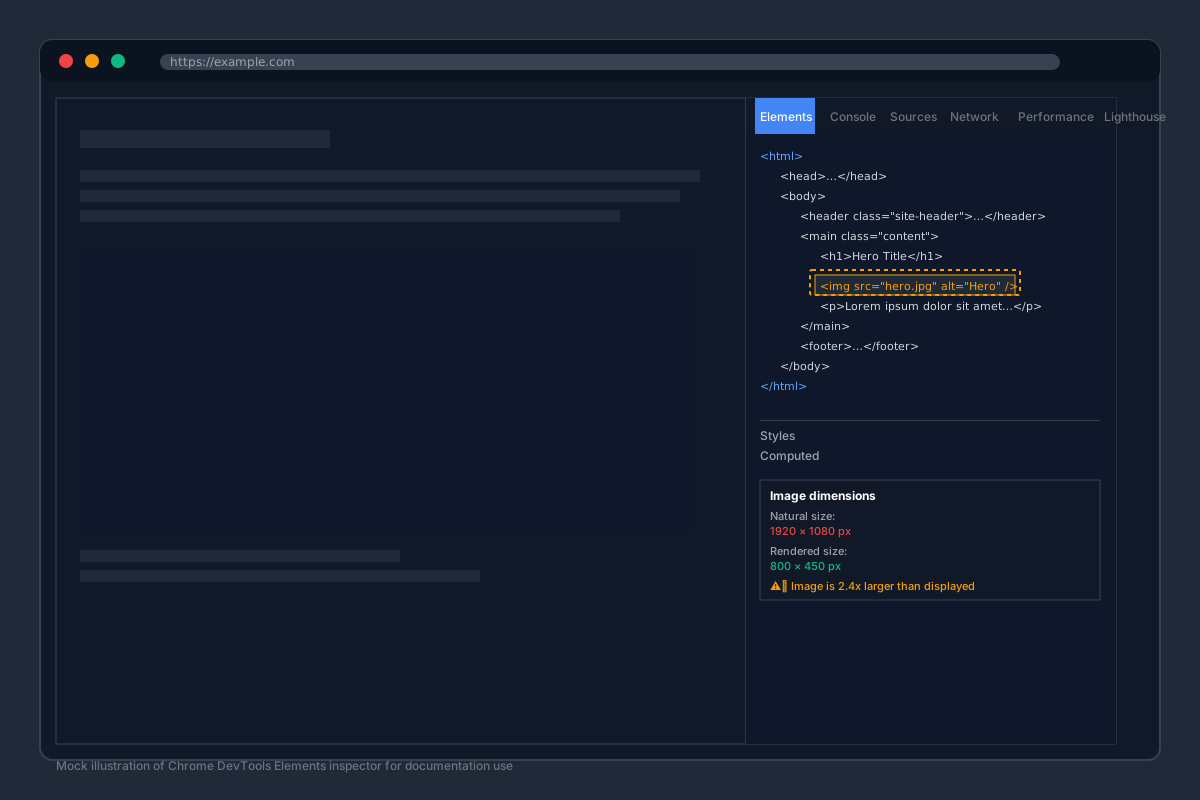
3.3 Check Image Dimensions
Right-click any image → "Inspect" to see actual vs displayed dimensions.
Step 4: Fix Image Issues
4.1 Properly Size Images
Use responsive images with multiple sizes to serve appropriately sized images for different viewport widths, reducing bandwidth and improving load times.
<img
  src="/images/hero-1600.jpg"
  srcSet="/images/hero-640.jpg 640w, /images/hero-960.jpg 960w, /images/hero-1280.jpg 1280w, /images/hero-1600.jpg 1600w"
  sizes="(max-width: 768px) 90vw, (max-width: 1200px) 70vw, 1200px"
  alt="Product hero"
  loading="lazy"
/>
4.2 Handle High-DPI Displays
For retina/high-DPI displays, provide higher resolution images to ensure crisp visuals on all devices, preventing pixelation and blurriness.
<img
  src="/images/hero-800.jpg"
  srcSet="/images/hero-800.jpg 1x, /images/hero-1600@2x.jpg 2x, /images/hero-2400@3x.jpg 3x"
  alt="Product hero"
  loading="lazy"
/>
4.3 Combine Responsive and High-DPI Images
For the best performance, combine both techniques to serve optimal images for every device and screen size, maximizing both quality and efficiency.
<img
  src="/images/hero-1600.jpg"
  srcSet="/images/hero-640.jpg 640w 1x, /images/hero-1280@2x.jpg 640w 2x, /images/hero-960.jpg 960w 1x, /images/hero-1920@2x.jpg 960w 2x, /images/hero-1280.jpg 1280w 1x, /images/hero-2560@2x.jpg 1280w 2x, /images/hero-1600.jpg 1600w 1x, /images/hero-3200@2x.jpg 1600w 2x"
  sizes="(max-width: 768px) 90vw, (max-width: 1200px) 70vw, 1200px"
  alt="Product hero"
  loading="lazy"
/>
4.4 Use Next-Gen Formats
Serve WebP/AVIF with fallbacks to achieve significantly smaller file sizes while maintaining quality, reducing bandwidth usage and improving load times.
<picture>
  <source srcset="hero.avif" type="image/avif" />
  <source srcset="hero.webp" type="image/webp" />
  <img src="hero.jpg" alt="Hero image" />
</picture>
4.5 Responsive Images with Next-Gen Formats
Use the picture element for responsive images with different formats, allowing fine-grained control over image selection based on device capabilities and viewport size.
<picture>
  <source media="(max-width: 768px)" srcset="hero-768.avif" type="image/avif" />
  <source media="(max-width: 768px)" srcset="hero-768.webp" type="image/webp" />
  <source media="(max-width: 768px)" srcset="hero-768.jpg" />
  <source media="(max-width: 1200px)" srcset="hero-1200.avif" type="image/avif" />
  <source media="(max-width: 1200px)" srcset="hero-1200.webp" type="image/webp" />
  <source media="(max-width: 1200px)" srcset="hero-1200.jpg" />
  <source srcset="hero-1600.avif" type="image/avif" />
  <source srcset="hero-1600.webp" type="image/webp" />
  <img src="hero-1600.jpg" alt="Hero image" />
</picture>
4.6 Combine All Techniques
For maximum optimization, combine responsive images, high-DPI support, and modern formats.
<picture>
  <source media="(max-width: 768px)" srcset="hero-768.avif 1x, hero-1536@2x.avif 2x" type="image/avif" />
  <source media="(max-width: 768px)" srcset="hero-768.webp 1x, hero-1536@2x.webp 2x" type="image/webp" />
  <source media="(max-width: 768px)" srcset="hero-768.jpg 1x, hero-1536@2x.jpg 2x" />
  <source media="(max-width: 1200px)" srcset="hero-1200.avif 1x, hero-2400@2x.avif 2x" type="image/avif" />
  <source media="(max-width: 1200px)" srcset="hero-1200.webp 1x, hero-2400@2x.webp 2x" type="image/webp" />
  <source media="(max-width: 1200px)" srcset="hero-1200.jpg 1x, hero-2400@2x.jpg 2x" />
  <source srcset="hero-1600.avif 1x, hero-3200@2x.avif 2x" type="image/avif" />
  <source srcset="hero-1600.webp 1x, hero-3200@2x.webp 2x" type="image/webp" />
  <img src="hero-1600.jpg" alt="Hero image" />
</picture>
4.7 Optimize for LCP
If the image is your Largest Contentful Paint element, preload it to improve Core Web Vitals scores and reduce perceived loading time for better user experience.
<link rel="preload" as="image" href="/images/hero-1280.jpg" imagesrcset="/images/hero-640.jpg 640w, /images/hero-960.jpg 960w, /images/hero-1280.jpg 1280w" imagesizes="70vw" />
<img src="/images/hero-1280.jpg" fetchpriority="high" alt="Product hero" />
4.8 Lazy Load Below-the-Fold Images
Defer loading of images below the fold to improve initial page load performance and reduce bandwidth usage, prioritizing above-the-fold content for faster perceived loading.
<img src="image.jpg" loading="lazy" alt="Description" />
Step 5: Verify Your Fixes
5.1 Re-run Lighthouse
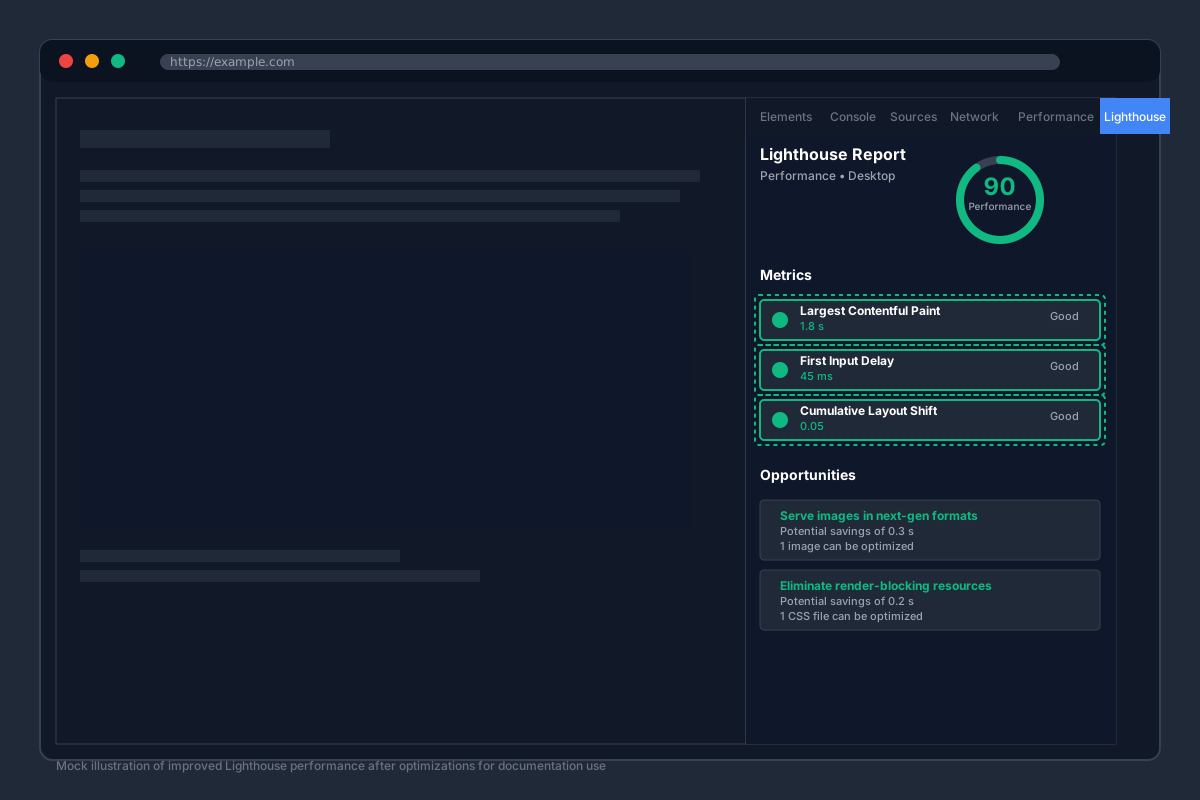
5.2 Compare Before/After
Look for improvements in:
- Performance score - Should increase significantly
- LCP (Largest Contentful Paint) - Should be faster
- Opportunities - Image-related issues should be reduced or eliminated
- File sizes - Check Network tab for smaller image sizes
Expected Results
After implementing these fixes, you should see:
- 50–80% smaller image file sizes
- Faster LCP (Largest Contentful Paint)
- Better desktop scores in Lighthouse (typically 20-40 point improvement)
- Higher conversion rates from improved page speed
- Reduced bounce rate on all devices
Pro Tips
- Start with the biggest images - Focus on hero images and above-the-fold content first
- Use AVIF as your primary format - It has excellent browser support and good compression
- Test different pages - Run Lighthouse on multiple pages to find the worst-performing images across your site
- Monitor Core Web Vitals - Use Google PageSpeed Insights or Chrome DevTools to track LCP, FID, and CLS over time
- Set up automated optimization - Use build tools or CDNs to automatically optimize images (advanced)
Tools for Image Optimization
Derivv Pro can handle 90% of your image optimization needs and is improving every day. While the tools below are great for specific use cases, Derivv Pro provides a comprehensive solution that combines multiple optimization techniques with an enhanced workflow in one desktop application.
Free Web-based Tools
- Squoosh - Web-based compression with live preview
- Compressor.io - Free web-based image compression
CLI Tools
- Sharp - Node.js image processing
- ImageMagick - Command-line image manipulation
- cwebp - Google's WebP encoder
Framework-Specific
- Next.js Image - Automatic optimization
- Gatsby Image - Optimized image components
- Smush - WordPress image optimization plugin
CDN & DAM Tools
- Cloudinary - CDN with auto-optimization
- ImageKit - Real-time image optimization CDN
- Cloudflare Images - Global image optimization
¹
Based on 2025 studies showing images can constitute 50-90% of webpage total weight. Source: PeakOnTech Image Optimization Guide